Your Google Business Profile (GBP) is managed directly through a dashboard found on Google Search. There's no separate website you need to log into anymore, like there was in the past.
You can access everything (posts, photos, reviews, insights, etc.) right from your normal Google account.
For Desktop:
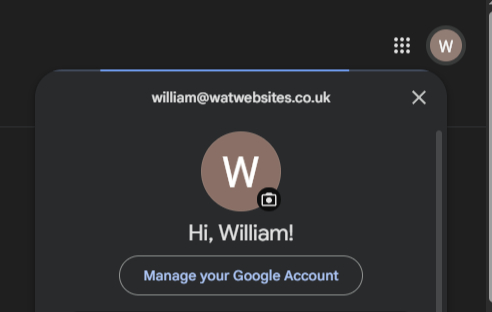
1. Sign in to your Google Account. Make sure you're signed in to the same Gmail account that owns or manages your business profile.
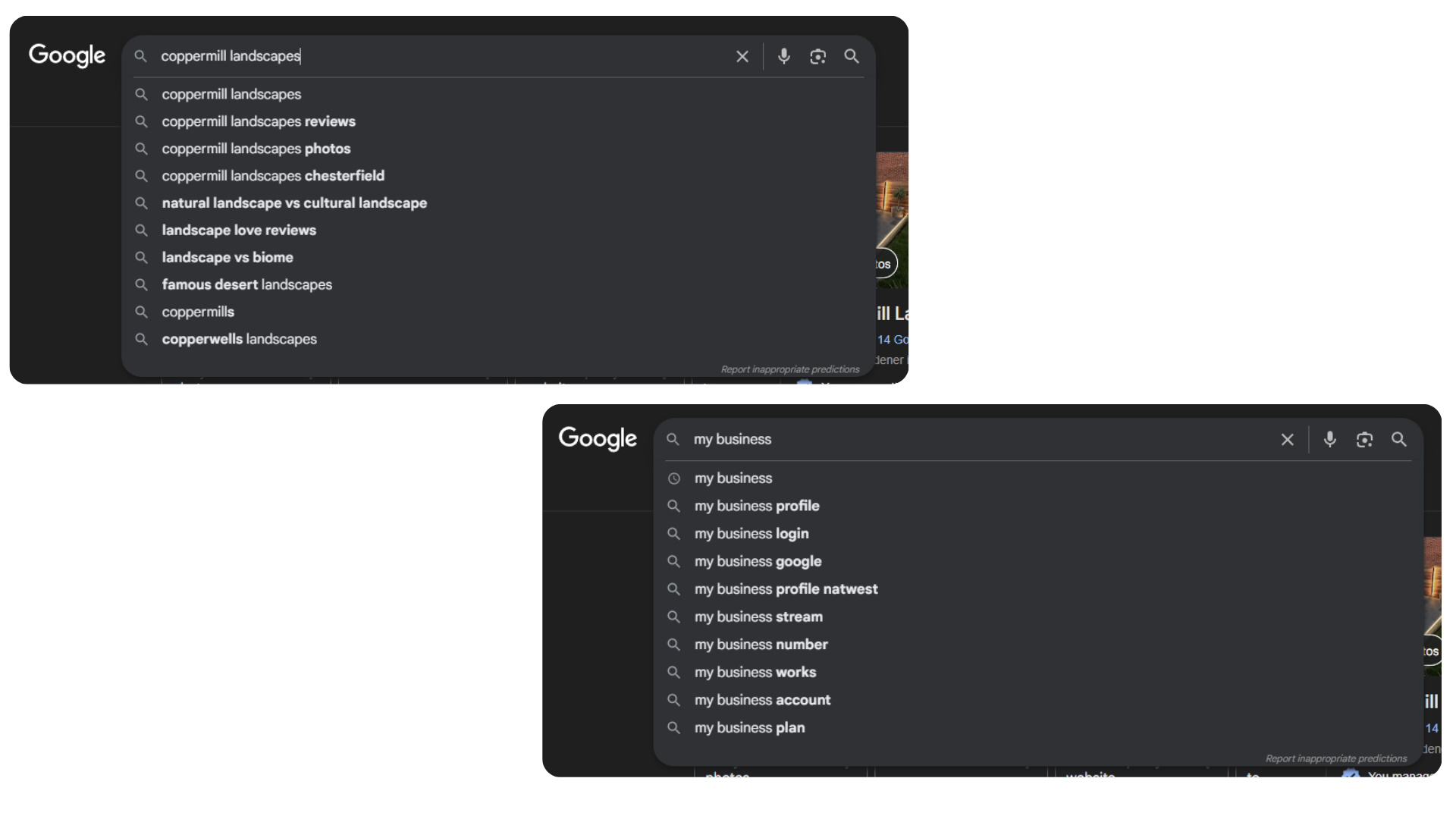
2. Search for your business name on Google. Type your business name exactly as it appears on your profile (for example "Cazapwent Landscapes"). If you only have one Business Account on your log in, you can also type "my business".
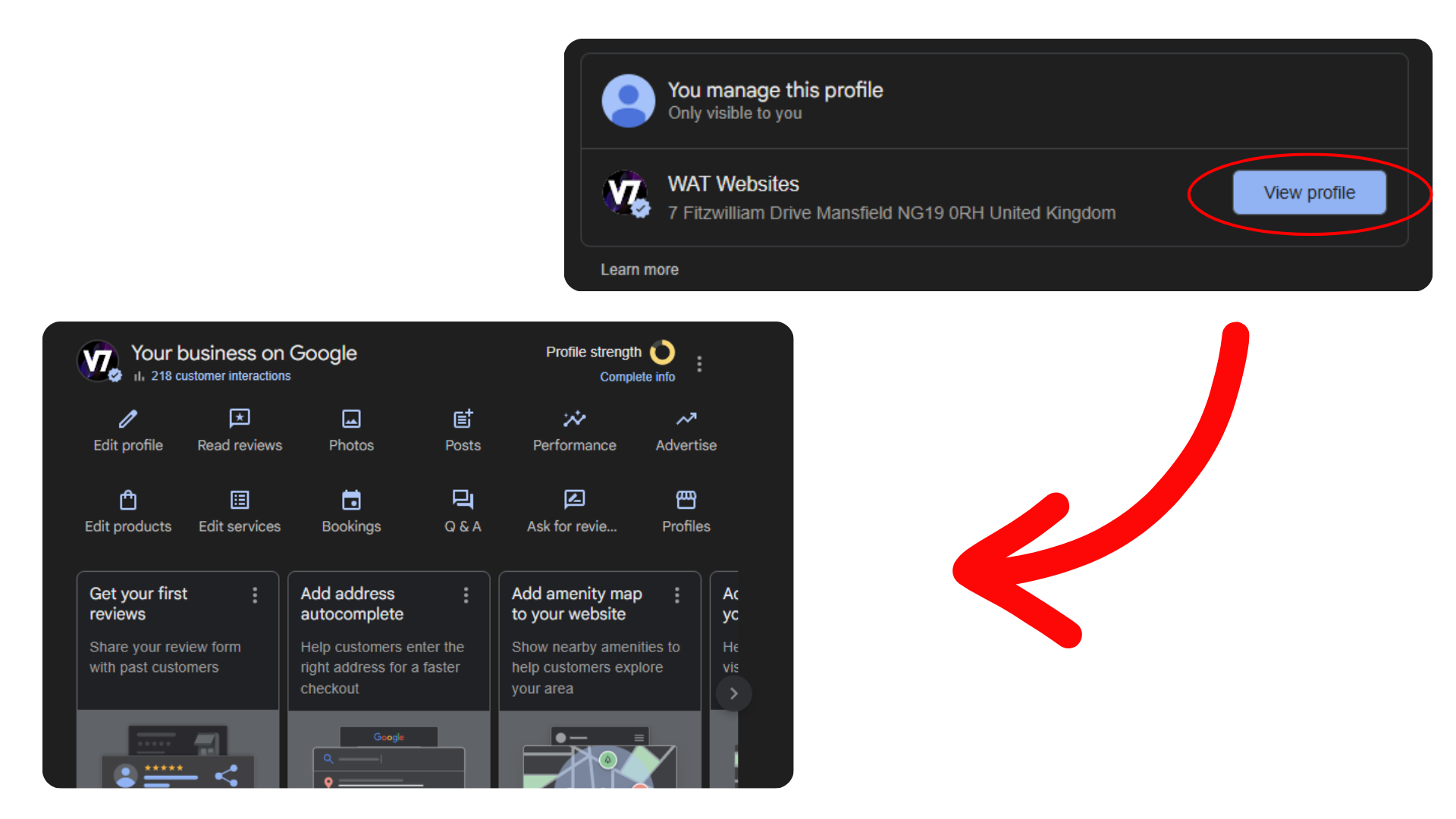
3. Find your Management Panel. At the top of the search results, you'll see a panel with options such as "edit profile, read reviews, photos, etc." If you don't see it straight away, sometimes you have to scroll down until you find a section that says "You manage this Business Profile" and click view profile, then the dashboard should load.
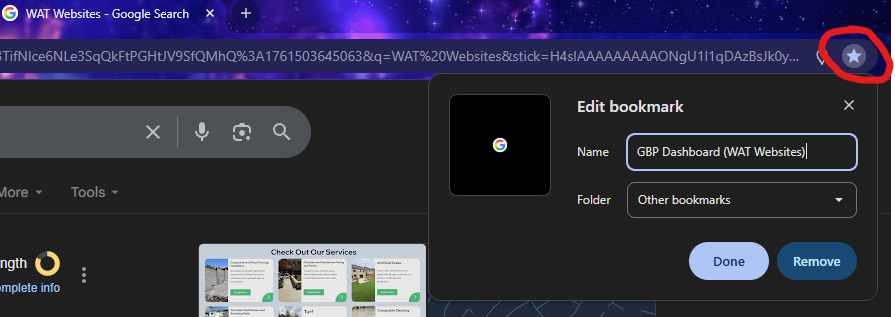
4. Favourite this section. Bookmark this page in your browser so you can easily find it again later. Every change you make to your Google Business Profile is done through this tab, so you'll need it for all the upcoming lessons.
For Mobile:
1. Sign in to your Google Account. Make sure you're signed in to the same Gmail account that owns or manages your business profile.
2. Search for your business name on Google. Type your business name exactly as it appears on your profile (for example "WAT Websites"). If you don't see it straight away, sometimes you have to scroll down. Make sure you are using google.com and not other browsers.
![Mobile step 2 - searching for a business name on Google via mobile browser [border]](/Images/Help-Centre/how-to-access-your-gbp/WAT-Website-Search.png)
3. Find your Management Panel. Management panel on mobile looks a little different to desktop, you will have your business name with tabs showing "overview, services, photos, reviews, etc."
![Mobile step 3 - WAT Websites GBP dashboard as it appears on a mobile device [border]](/Images/Help-Centre/how-to-access-your-gbp/WAT-Websites-GBP-Phone-Dashboard_edited.png)
4. Favourite this section. Bookmark this page on your phone so you can easily find it again later. Every change you make to your Google Business Profile is done through this tab, so you'll need it for all the upcoming lessons.
What Next?
Now you know where the dashboard lives, here's where most business owners should go from here:
- No profile showing up at all? You probably haven't created one yet. Our step-by-step guide to creating your Google Business Profile takes about 15 minutes.
- Want your team or agency to help manage it? Don't share your Google password. Invite them as a user instead, it's a two-minute job from this same dashboard.
- Profile set up but not bringing in work? Reviews are the biggest lever. Grab your direct review link and QR code with our review system guide.
- Rather someone did the whole thing for you? That's exactly what our Google Business Profile service covers, from setup to the ongoing optimisation that gets you ranking.
Frequently Asked Questions
Why can't I see my Business Profile dashboard when I search my business name?
Nine times out of ten you're signed in to the wrong Google account. Click your profile picture in the top right of Google and check which account is active, then switch to the one that owns the profile. If you're on the right account and still see nothing, your profile may not be verified yet, or you may not have been added as a user on it.
Do I need a separate login for my Google Business Profile?
No. There's no separate username or password, it's all tied to your normal Google account. That's why it matters which Gmail address the profile was set up with: whoever controls that inbox controls the profile. If possible, keep it on a business Gmail rather than an employee's personal account.
Has the Google My Business app gone?
Yes, Google retired the Google My Business app back in 2022. Everything is now managed directly through Google Search or the Google Maps app on your phone. If you've still got the old app installed, you can delete it, as it no longer works.
Can I manage my profile through the Google Maps app instead?
Yes. Open the Google Maps app while signed in to the right account, tap your profile picture, and choose your business from the menu. Some owners find the Maps app handier for uploading photos on the go, while the Search dashboard is better for edits and settings.
What if Google says someone else manages my profile?
It means another Google account has already verified your business, often an old marketing agency, a previous employee, or an account you've forgotten about. Use the request access option on the profile and Google will email the current owner. If they don't reply within a few days, Google usually lets you verify it yourself.