A Google Business Profile (GBP) is one of the most powerful free tools your local business can use. If you've been searching for how to add your business to Google, or how to register your business so it shows up on Google Maps, this is the same thing: creating a Google Business Profile is how you do it. In this article I'll show you how to get started and set one up like a pro.
If you're not sure what a profile actually is or whether you need one, read what is a Google Business Profile first, then come back here to build yours.
Video Walkthrough
How to Add Your Business to Google: Step by Step
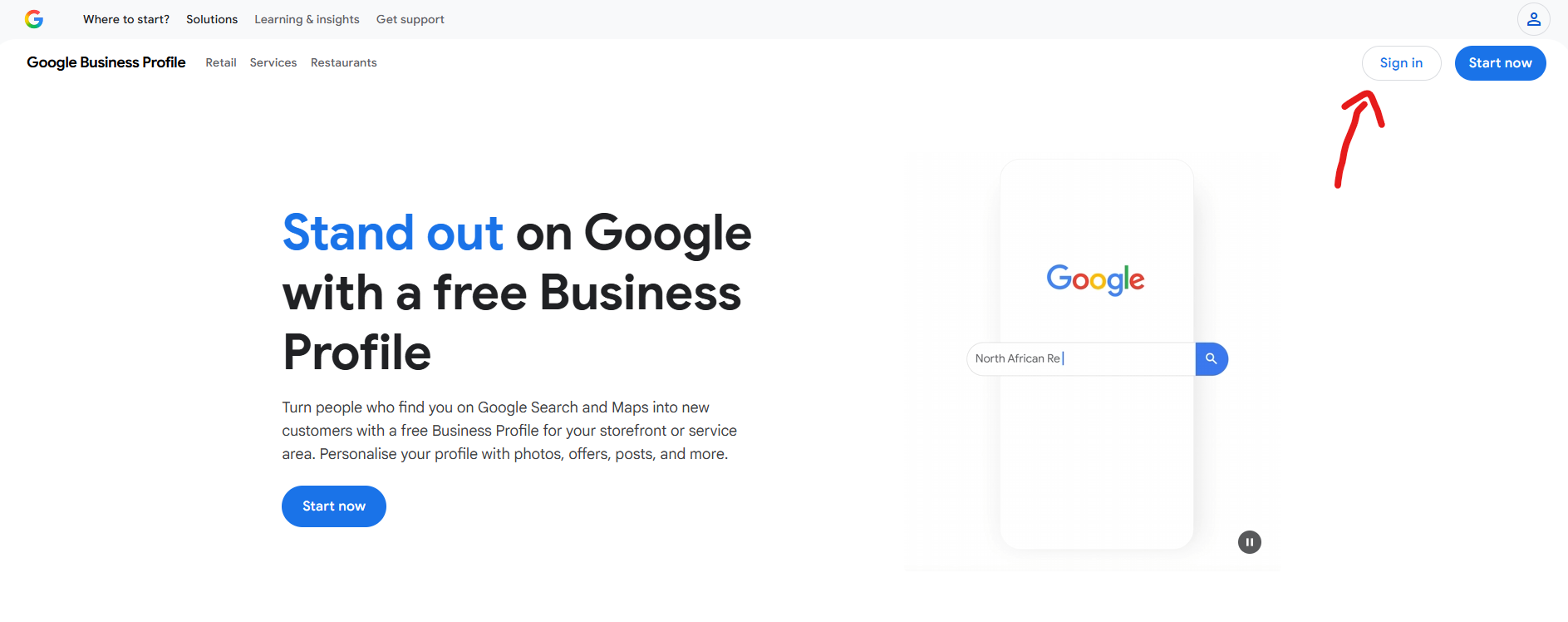
1. Go to the Google Business Profile Website
Head to business.google.com and make sure you are logged into a Google account.
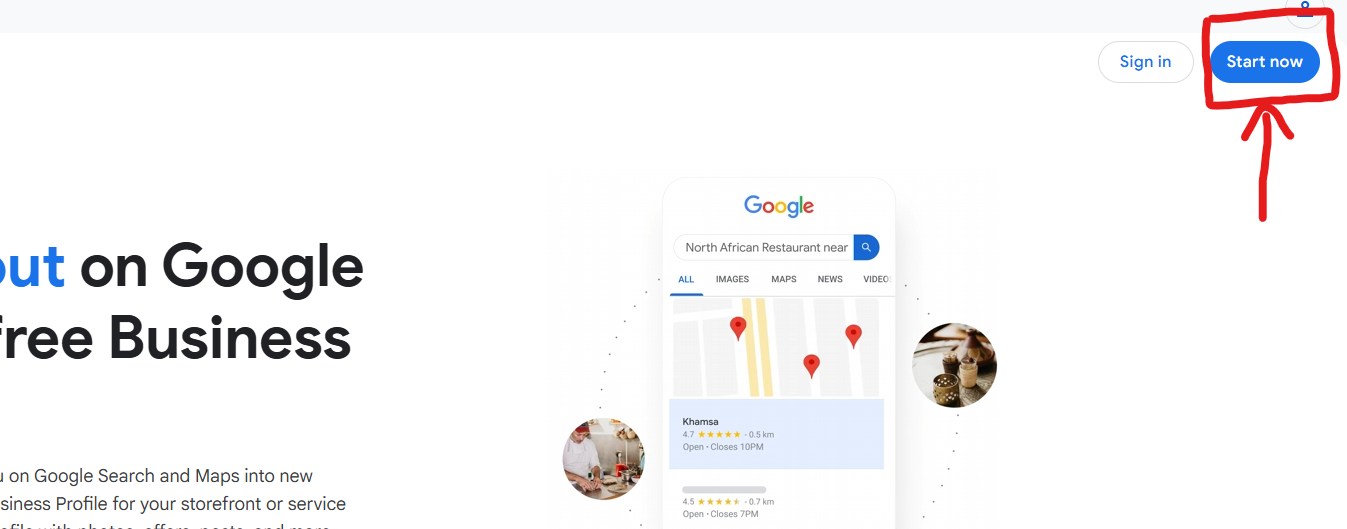
2. Press the "Start Now" Button
In the top right of the screen there is a blue "Start Now" button. Press this to begin.
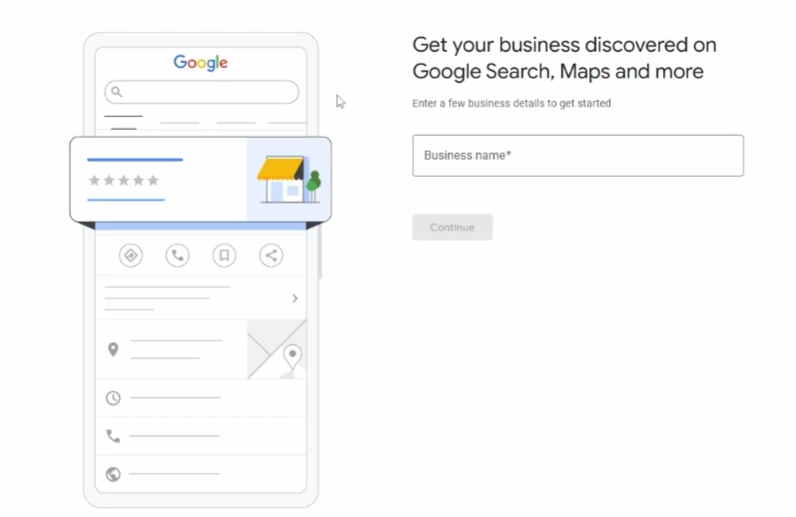
3. Enter Your Business Name
You'll be taken to a page to create your profile. Start by entering the name of your business. Use your real business name exactly, with nothing added. (More on why in the suspension section below.)
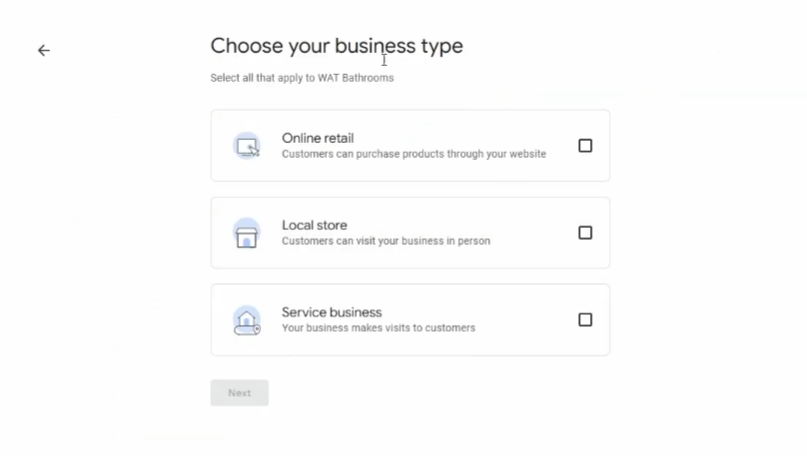
4. Choose Your Business Type
Select your business type from the options: Online Retail, Local Store, or Service Business. Make sure you pick the correct one that applies to you.
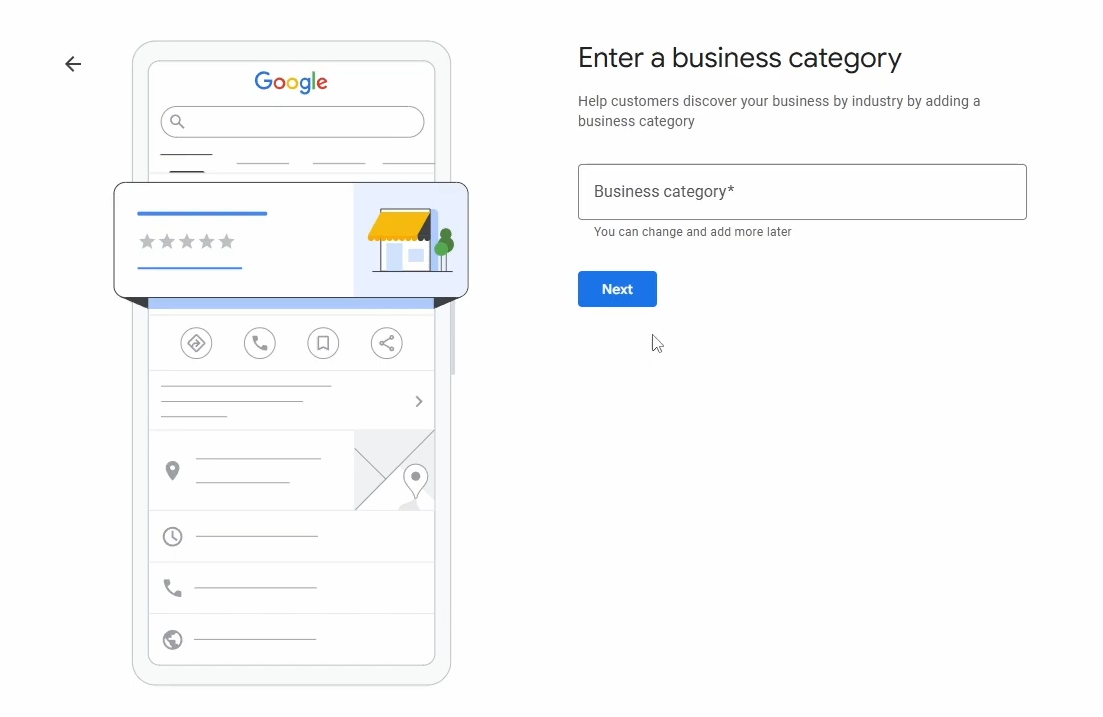
5. Enter Your Business Category
This step is very important as it directly affects what you rank for. The best way to choose your category is to search for your competitors on Google and find the top 3 profiles. Click "Suggest an edit" on each profile to see what their Primary Category is, then select that same category for yours.
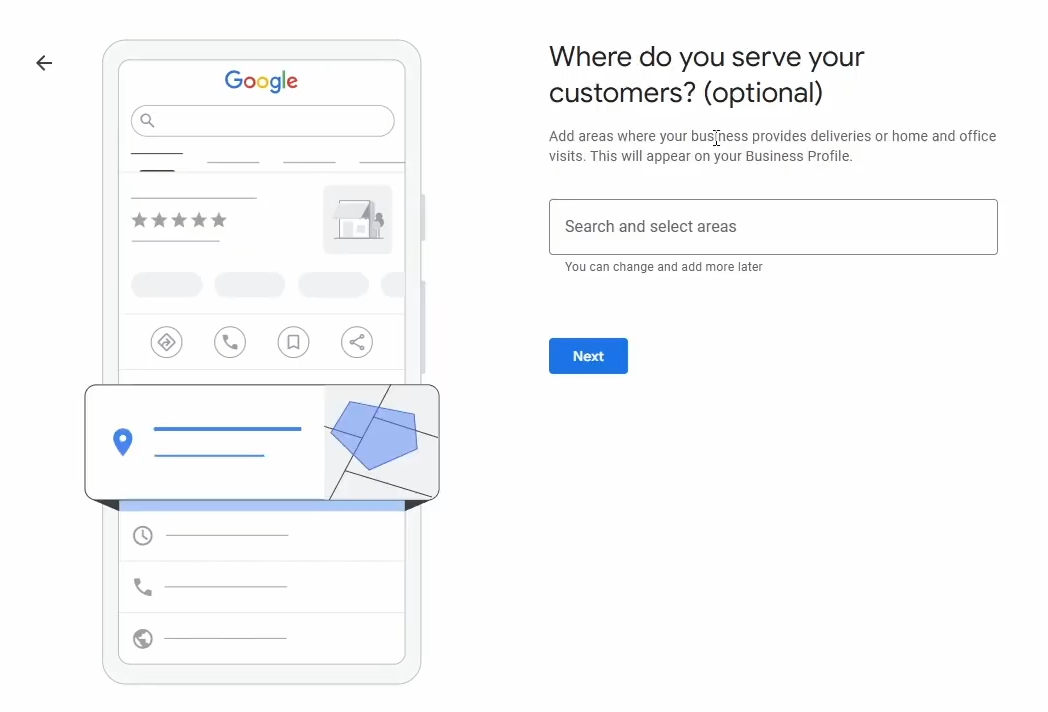
6. Choose Your Service Area
Select the locations that you serve. Be specific here: the more accurate you are, the better Google can match you to local searches.
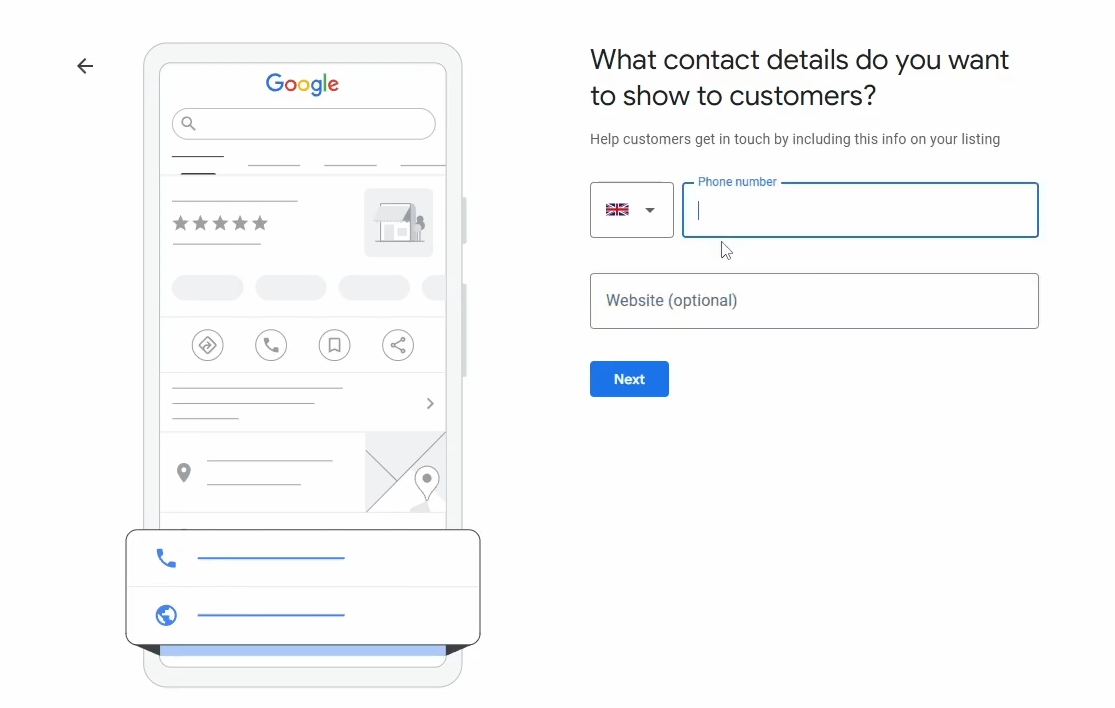
7. Contact Details
Enter your business phone number. This is what will be shown on your profile for customers to call. Also add your website URL if you have one.
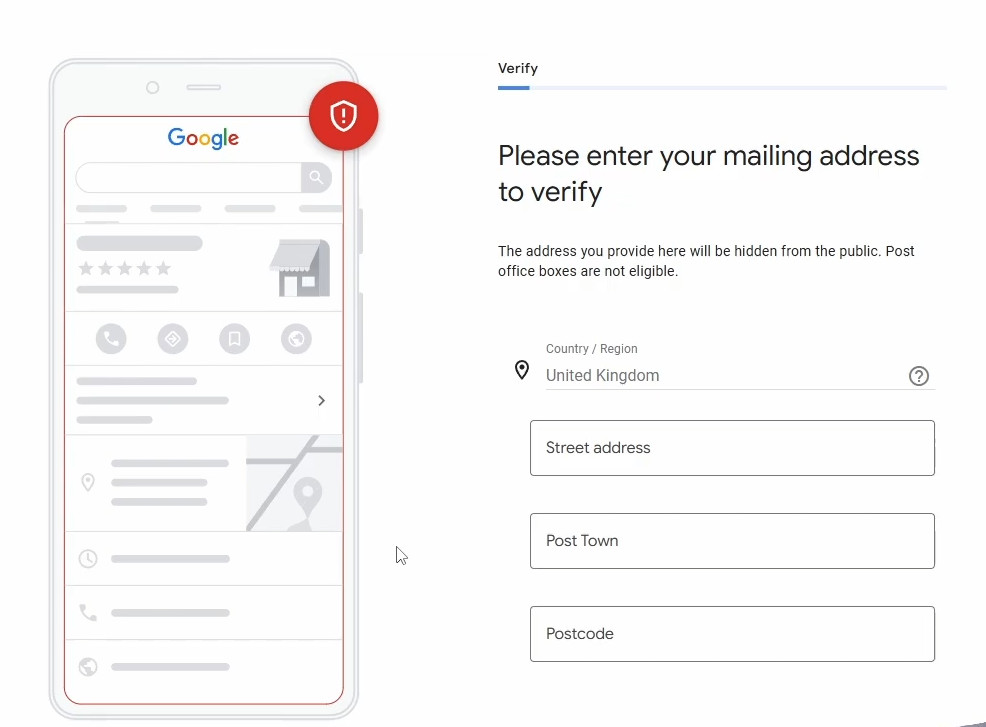
8. Verify Your Address
Google will ask you to verify your home address. This won't be shown publicly on your profile and can be turned off afterwards; it's only used to verify your account. Follow the on-screen instructions as the verification method can vary slightly for each person. For most new service businesses, Google now asks for video verification, which is covered in its own section below.
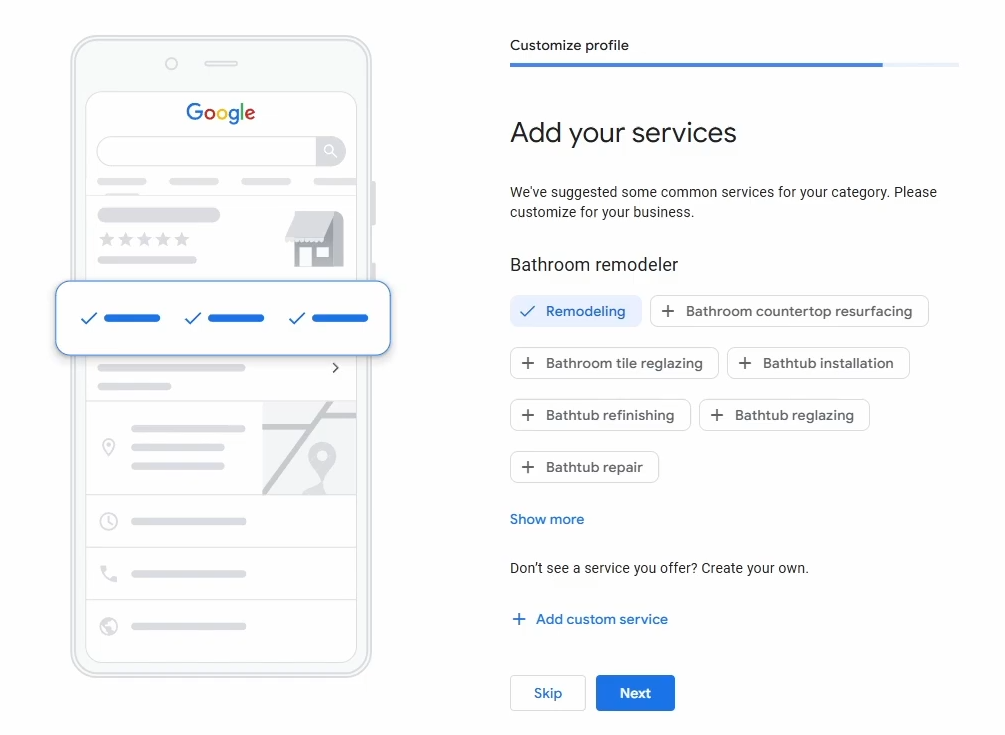
9. Add Your Services
Add the services your business offers. Use the ones Google suggests, as most of what you do will already be there. I'd recommend adding 5 to 15 services rather than going overboard, and remember you can always update them later.
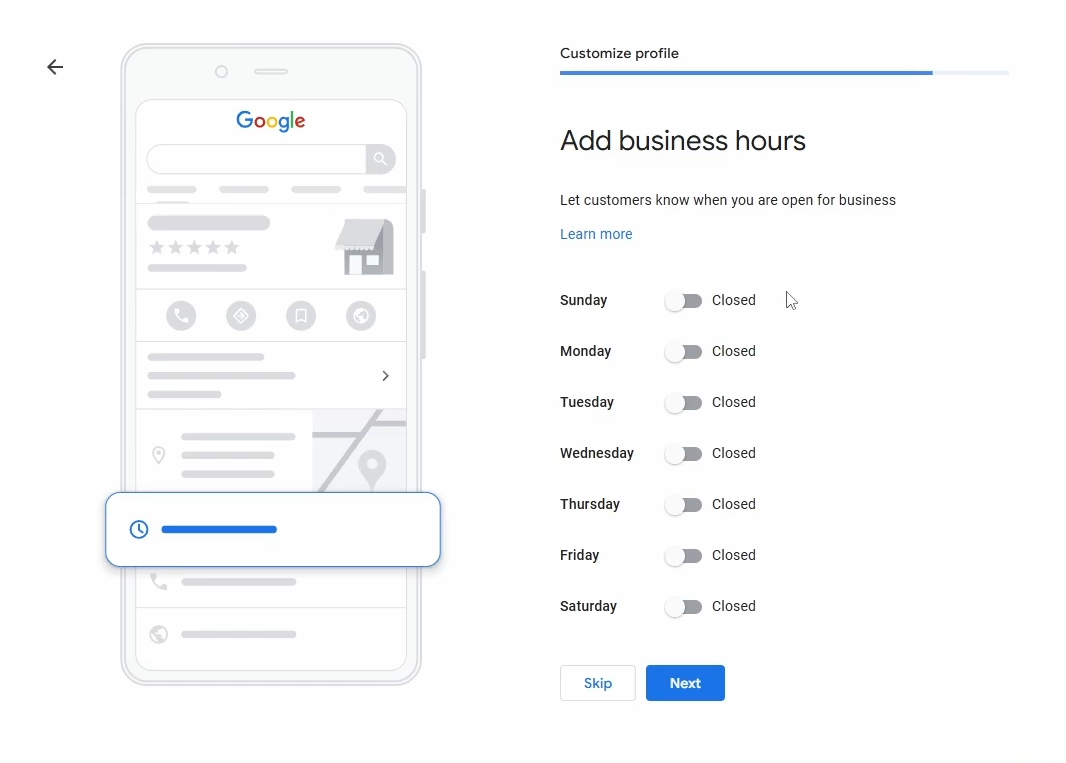
10. Business Hours
Enter your opening hours, or for service businesses, the hours you'd typically answer the phone. Make sure these match your Facebook page and any other online directories you're listed on.
11. Business Description
Write a description of your business and try to include your main keywords. For most businesses, mention the primary service you offer and your location. For example, a landscaper might include "Professional Landscaper in Nottingham" somewhere in the description.
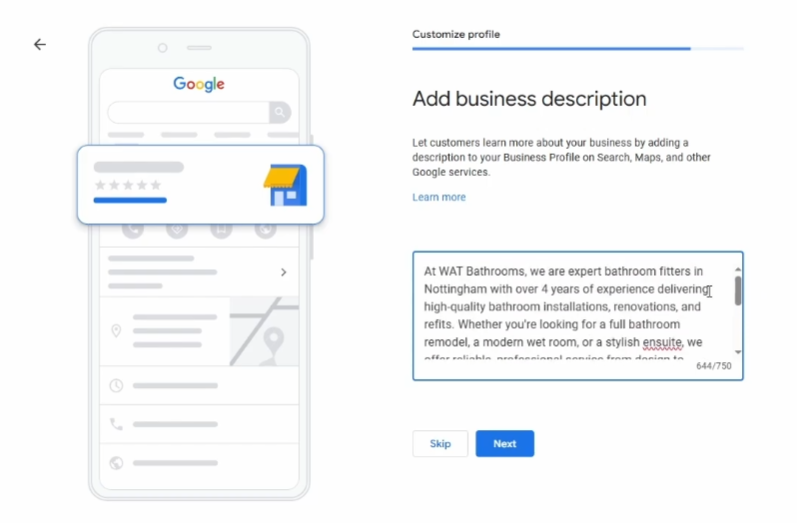
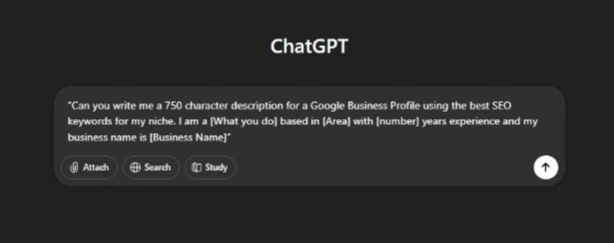
If you're struggling, you can use ChatGPT to write your first description. Just copy and paste this prompt and fill in the blanks:
"Can you write me a 750 character description for a Google Business Profile using the best SEO keywords for my niche. I am a [what you do] based in [area you serve] with [number] years experience and my business name is [Business Name]"
AI won't be as good as a professional copywriter, but it will do a solid job to get you started.
12. Add Photos of Your Work
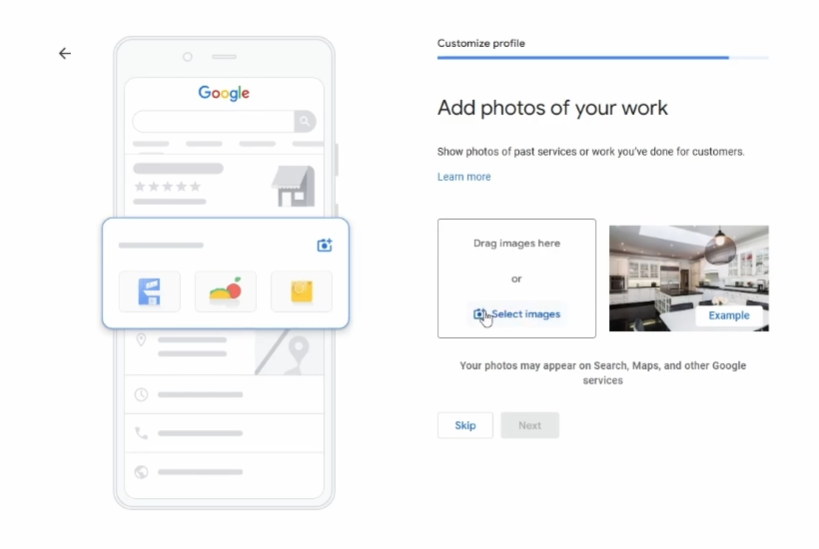
Finally, add as many photos of your work as possible. The more the better. If a potential customer can see 50+ high quality photos and videos of real jobs, they are far more likely to trust you than if they see just one or two basic pictures.
Video Verification: What to Expect
For most new service businesses, Google's default verification method is now a video, not a postcard. A lot of older guides don't mention it at all, so here's what actually happens.
Google asks you to record one continuous clip through your phone, following prompts on screen. You're proving two things: that the business is real, and that it operates from the address you gave. Have these ready to show before you press record:
- Your work vehicle, ideally sign-written, or your tools and equipment laid out
- Business signage or branding: van decals, uniform, branded invoices or letterheads
- Proof of your location: film yourself walking up to the address on the profile, showing the street or house number, then something that ties you to it, like post with your name and that address
- For premises-based businesses: unlock the door and film inside, showing stock or equipment
A few things that trip people up. Do it in one take, because stopping and restarting looks suspicious to the reviewer. Don't film other people or number plates that aren't yours. And don't rush it: a 60 to 90 second clip that clearly proves you're real beats a frantic 20 seconds. Once submitted, the review usually comes back within a few days, sometimes up to a week.
If the video is rejected, you can usually retry or request a different method, like a live video call with Google support. Don't create a second profile in frustration. That makes things worse (see below).
Mistakes That Get New Profiles Suspended
Google suspends new profiles constantly, and it usually happens right after setup, when a suspension hurts most. Nearly all of them trace back to one of these:
- Keyword-stuffing the business name. "Smith Plumbing" is fine. "Smith Plumbing | Best Emergency Plumber Nottingham" gets you suspended. Your profile name must match your real-world business name, and competitors can and do report offenders.
- An address Google doubts. Shared offices, virtual offices, and mates' units used to look established are all red flags. Use your real address; if you work from home, it stays hidden anyway.
- Details that don't match the rest of the internet. If your website, Facebook page, and directory listings show different phone numbers or addresses, Google trusts none of them. Get them identical before you verify.
- Changing core information straight after verifying. Editing your name, address, and category in the first days after verification looks like the profile was set up dishonestly. Set it up right the first time and leave the core details alone for a few weeks.
- Creating a duplicate profile. If something goes wrong, never start a second profile for the same business. Appeal the first one through Google's reinstatement form with proof like utility bills or your company registration.
None of this should put you off. It's just the difference between doing it properly once and fighting suspensions for months.
BONUS: £400 Google Ads Credit
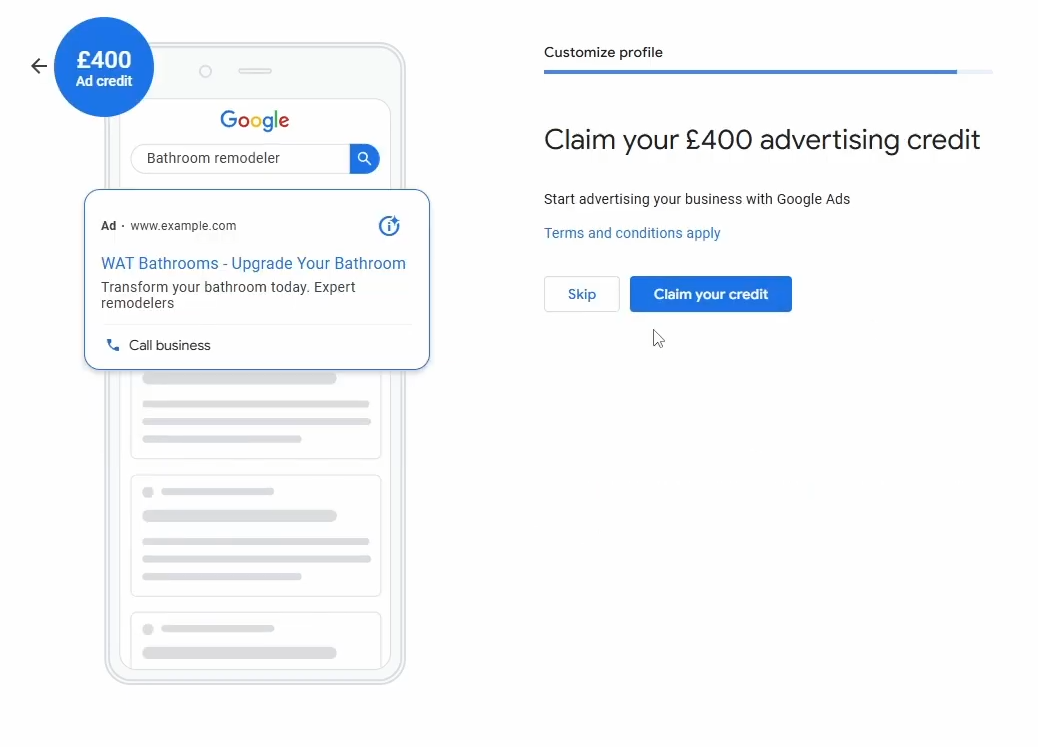
Once you've finished setting up, Google will ask if you want to sign up for Google Ads and claim £400 in advertising credit. Don't do this yet.
Once you create your ad account you have 60 days to spend £400. If you do, you get £400 in free credit, so your next £400 of ads is essentially free. But if you don't spend £400 within that window, you lose the deal entirely. Only claim this when you are 100% ready to start advertising and have the budget set aside, as the 60-day clock starts when your ad account is created, not when you start spending.
There are also larger deals available if you go directly through the Google Ads website: for example, spend £1,200 and get £800 in credit, or spend £2,400 and get £1,200 in credit.
What to Do After Setup
Creating the profile is the starting line. What decides whether you actually climb the map pack is what you do next:
- Learn where your dashboard lives. Everything is managed through Google Search itself, with no separate login. How to access your Google Business Profile shows where it is on desktop and mobile.
- Start collecting reviews from day one. Reviews are the biggest single ranking and trust factor for new profiles. Our review system guide gives you the exact ask, the message template, and how to get your direct review link and QR code.
- Add your team or your agency properly. Never share your Google password. How to invite people to your Google Business Profile covers adding managers the right way.
- Check the website your profile points to. Your profile will send people to your site, and a poor site wastes those clicks. Our free website audit scores it out of 100 across design, mobile, SEO, trust and conversion, so you know if it's ready for the traffic.
- Rather hand the whole thing over? Our Google Business Profile service covers setup and the ongoing optimisation that gets profiles ranking.
Frequently Asked Questions
Should I add keywords to my business name on Google?
No. Your profile name must match your real-world business name. Adding extras like Best Landscaper Nottingham is keyword stuffing, breaks Google's guidelines, and is one of the most common reasons new profiles get suspended. Competitors can report it too, and they do.
What if Google asks me to verify by video?
Video verification is now Google's default for a lot of new service businesses, so don't panic. You'll record a short clip showing evidence of your business: your van, tools, signage, and proof you operate from the address you gave. Do it in one continuous take, follow the on-screen prompts, and the review usually comes back within a few days.
Can I set up a Google Business Profile without showing my home address?
Yes. Choose Service Business during setup and Google keeps your address private, showing the areas you cover instead. You still need a real address for verification (a PO Box won't work), but customers never see it.
Why was my new Google Business Profile suspended?
The usual culprits are a keyword-stuffed business name, an address Google doubts (shared offices and virtual addresses are red flags), details that don't match what's on your website and Facebook, or changing lots of core information right after verifying. If it happens, don't create a second profile. Appeal through Google's reinstatement form with proof of your business, like utility bills or your company registration.
How long until my profile actually shows up in search results?
Your profile can appear within a few days of verification, but appearing isn't the same as ranking. For competitive searches it typically takes weeks or months of adding photos, collecting reviews, and keeping the profile active before you climb the map pack. Think of setup as the starting line, not the finish.