Getting Google reviews consistently is one of the single highest-impact things you can do for your local SEO, and most businesses completely ignore it. Here's the exact system we set up for every WAT client to get reviews coming in consistently without it feeling awkward or pushy.
Why Reviews Are Important
Google uses reviews as a major trust signal when deciding which local businesses to show higher in search results. The more high-quality, recent reviews you have, the stronger your profile appears.
Google looks at how many reviews you have, how often new ones are added, your overall star rating, the words customers use in their reviews, and whether you respond to them, to chose where you rank on the search result.
The higher you appear in search results, the more people will see your profile. More visibility means more clicks, more enquiries, and more jobs. There is a significant difference in traffic between businesses at the top and those further down the page, which is why consistently generating reviews is one of the simplest ways to increase enquiries. But it's not just Google. Reviews are often the first thing a potential customer looks at before deciding whether to call you. A business with 40 five-star reviews will get the call over a competitor with 3 reviews almost every time.
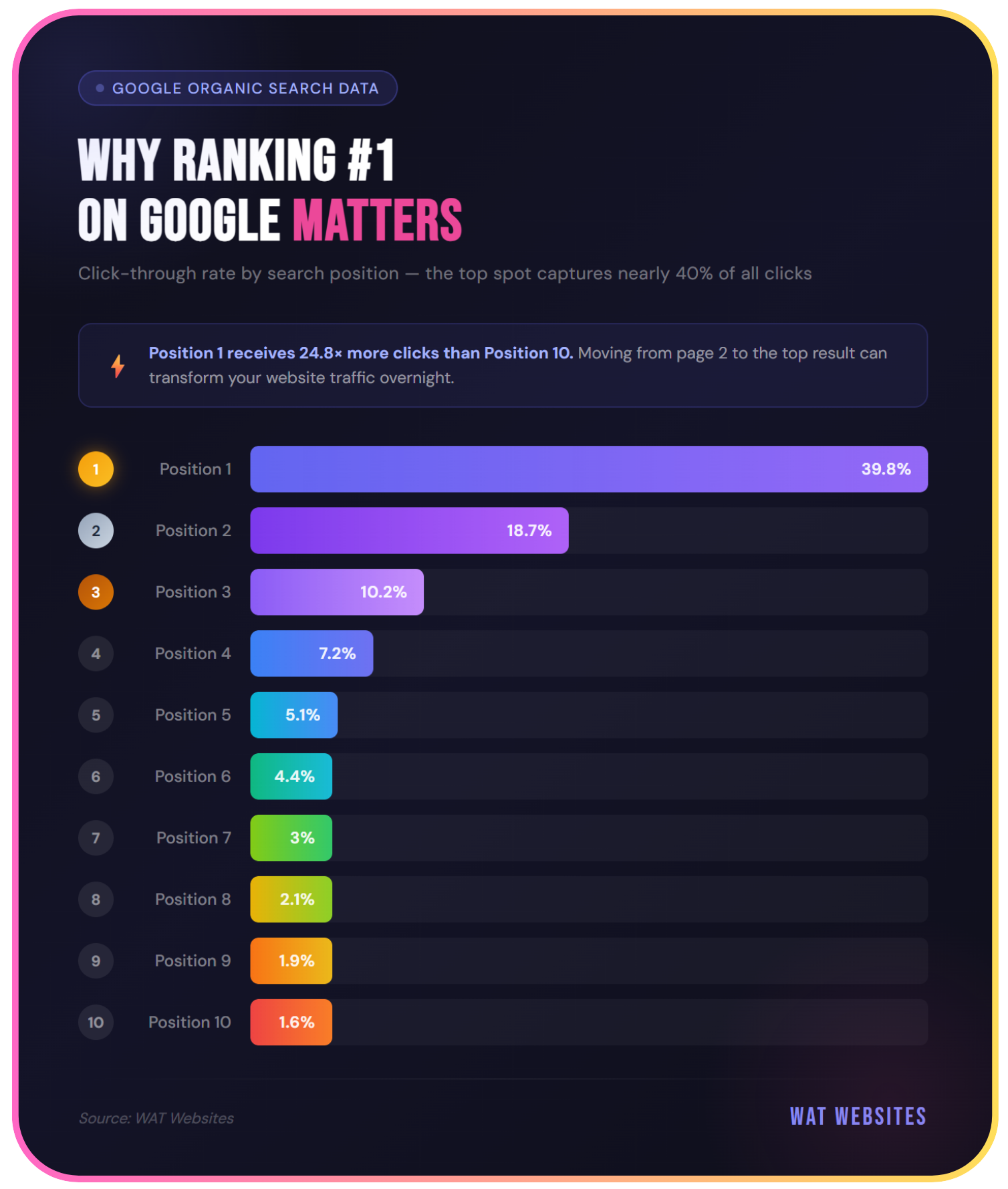
The reality: most happy customers won't leave a review unless you ask. They mean to, but life gets in the way. The businesses with the most reviews aren't the ones with the happiest customers. They're the ones who ask every single time.
The Best Way to Get Reviews (It Is Ask)
The system is simple. Make it part of your process at the end of every job:
- Finish the job
- If the customer is happy, ask them directly: "Would you mind leaving us a quick Google review? It really helps us out."
- Send them your direct review link by text or WhatsApp the same day
- That's it
Timing matters. Ask on the day you finish. That's when they're most satisfied and most likely to follow through. Leave it a week and the moment has passed.
Why Respond to Reviews?
Responding to every review signals to Google that your profile is active and managed. It also shows potential customers that you actually care about the people you work with.
A business with 20 reviews and thoughtful responses looks far more trustworthy than one with 50 reviews and total silence. It takes 30 seconds per review and makes a real difference.
Simple response formula:
- Thank them by name
- Mention the specific job or area if you can
- Keep it genuine, don't copy-paste the same response every time
How To Request Reviews
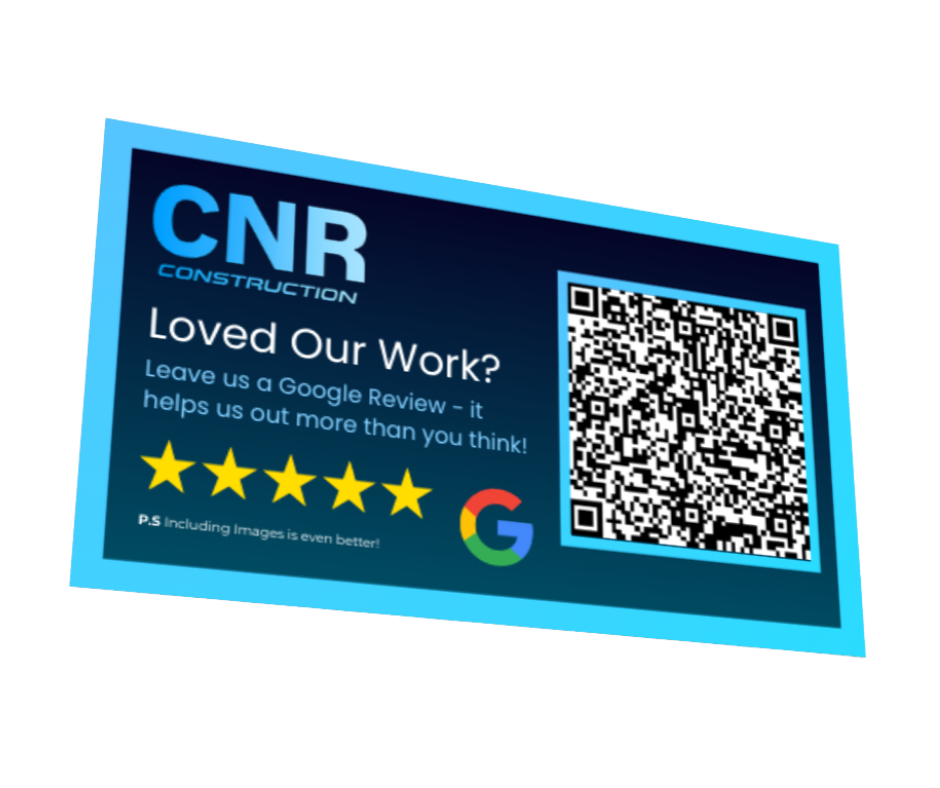
The easiest way to get reviews is a direct link or QR code that takes customers straight to your Google review box: no searching, no clicking around, just immediate access to leave a review. We like to do this with QR business cards for our clients.
Message template (copy this):
"Hi [Name], thanks so much for having us, really glad you're happy with the work. If you get 60 seconds, it would mean a lot if you could leave us a quick Google review. Here's the direct link: [YOUR LINK], no sign-in needed, just a few words about the job. Thanks again!"
Send it by text or WhatsApp the same day you finish. That's when they're most likely to do it.
How To Get Your QR Code and Direct Link (Desktop)
Step 1: Go to your Google Business Profile dashboard
Either search your business name on Google while signed in, or go to business.google.com. You'll see your profile management panel. (Can't find it? Our guide on how to access your Google Business Profile walks through it.)
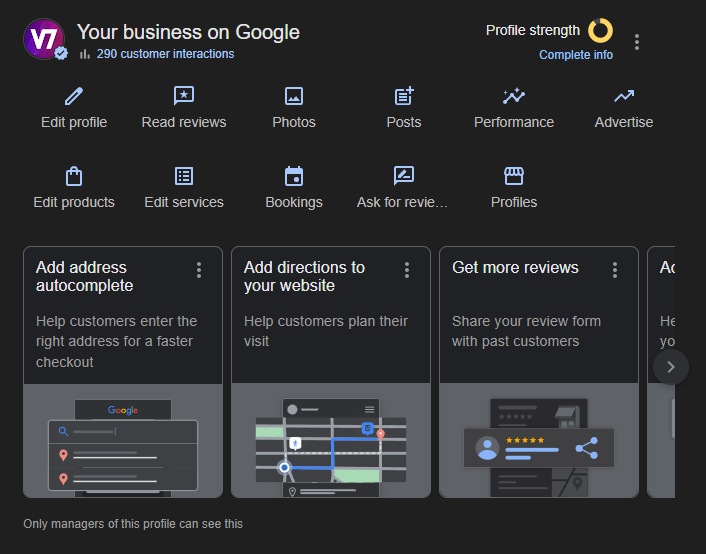
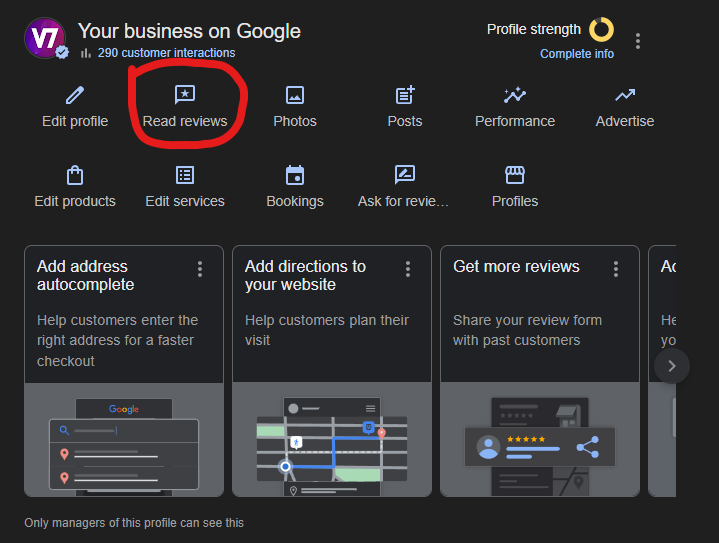
Step 2: Click "Read Reviews"
On your profile panel you'll see an "Read reviews" button. Click it.
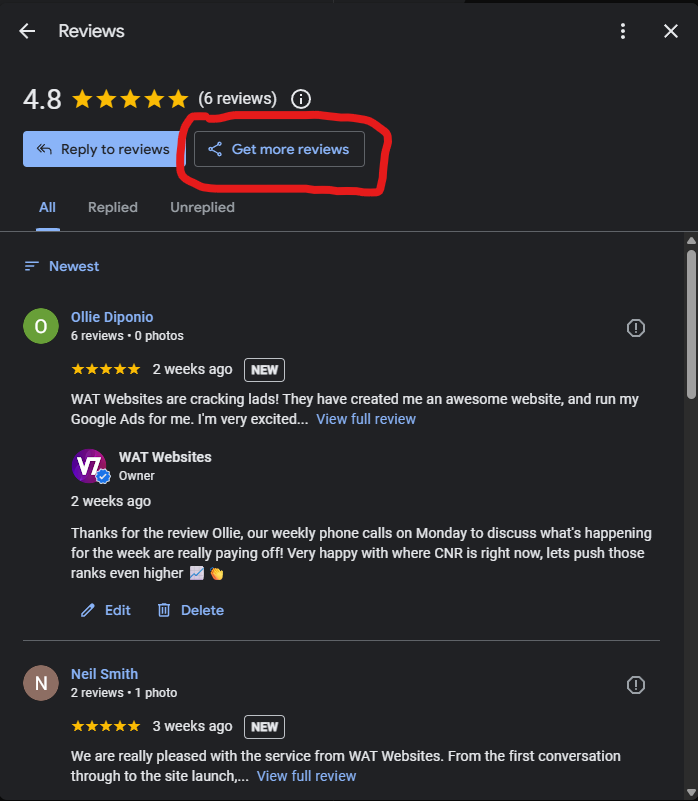
Step 3: Click "Get more reviews"
On the review panel you'll see a "Get more reviews" button. Click it.
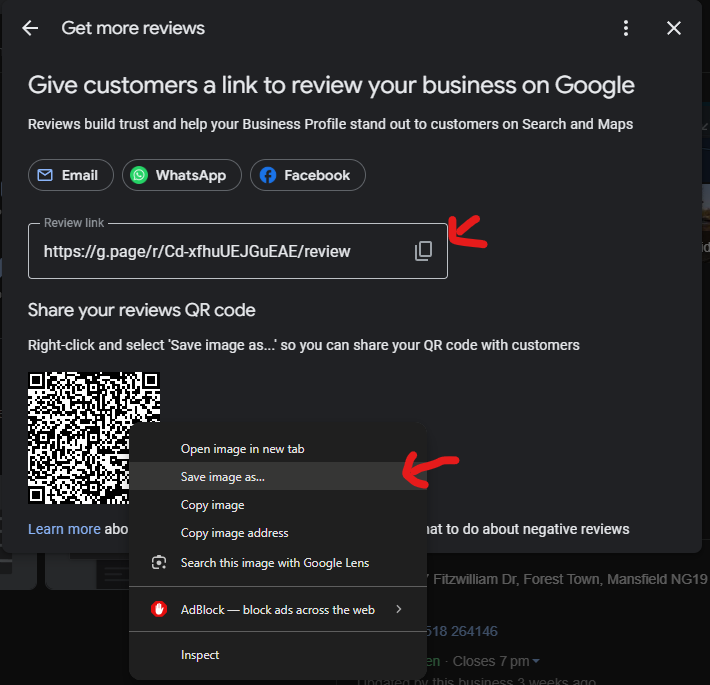
Step 4: Copy your review link and download your QR code
Google gives you a short direct link and a downloadable QR code. The link goes straight to your review box. Copy the link and save the QR code somewhere easy to access (your phone notes, WhatsApp saved messages, etc).
Your direct review link looks like this: https://g.page/r/YOUR_BUSINESS_ID/review
How To Get Your Direct Link (Mobile)
If you're doing this on your phone, the process is slightly different.
Step 1: Open Your Google Dashboard & Tap "Read reviews" on your profile
![Mobile step 1 - opening Google business Profile listing [border]](/Images/Help-Centre/review-system-gbp/mobile-step-1.jpg)
Step 2: Tap "Get more reviews"
![Mobile step 2 - tapping promote on Google Business Profile [border]](/Images/Help-Centre/review-system-gbp/mobile-step-2.jpg)
Step 3: Copy the link (No QR Code on mobile version as of April 2026)
Send it straight to your customer via WhatsApp or text.
![Mobile step 3 - copying the review link on mobile [border]](/Images/Help-Centre/review-system-gbp/mobile-step-3.jpg)
How Many Reviews Do You Need?
There's no magic number, but here's a realistic guide for local service businesses:
- 0–4: Your profile looks brand new and unproven. Most customers will scroll past. Priority number one is getting to 10+
- 10–25: You're building credibility. You're competitive with most local businesses in your area
- 25–50: Strong position. You're in the top tier for most local searches and significantly ahead of the average
- 50+: Dominant. Very hard for local competitors to catch up, and a significant trust signal to both Google and potential customers
The key isn't a one-off push to get 20 reviews then stopping. The businesses that win long-term are the ones that ask consistently: every job, every time. A steady flow of new reviews signals to Google that your business is active. Old reviews carry less weight over time.
Reviews are one pillar of a profile that ranks; if you want the whole thing handled, from setup to optimisation, that's our Google Business Profile service.
Frequently Asked Questions
Can I offer customers a discount or freebie for leaving a Google review?
No. Offering anything in exchange for a review is against Google's policy, even if you don't ask for five stars specifically. If Google catches it, reviews can be removed or your profile penalised. Just ask nicely and make it easy with a direct link; that's genuinely all it takes.
What should I do about a negative review?
Respond publicly, stay calm, and offer to put things right, because potential customers judge you on the reply more than the review itself. Never argue in the comments, even if the review is unfair. If it's clearly fake or from someone who was never a customer, you can report it to Google, but removals are slow and far from guaranteed.
Why hasn't my customer's review shown up?
Google filters reviews it suspects are spam, and it catches genuine ones all the time. Common triggers are a brand-new Google account, leaving the review while connected to your Wi-Fi, or an account with no review history. Ask the customer to check the review is set to public, and if it's vanished, they can simply post it again from home.
Can I ask friends and family to leave reviews?
Not unless they've genuinely paid you for work. Reviews from people who were never customers break Google's guidelines, and Google is better at spotting them than you'd think: same surname, same location, accounts with no review history. A handful of fake-looking reviews can undermine dozens of real ones.
Is it too late to ask customers from last year for a review?
It's not against any rules, but expect a much lower response rate, as the enthusiasm fades fast once the job's done. It's still worth one polite message to your best past customers. Just don't blast your entire customer history in one go; a sudden spike of reviews after months of silence looks odd to Google.