Key takeaway
Sign in to the Google account that manages your business and search "my business" on Google. Tap Read reviews, then Get more reviews, and copy the link. The QR code only comes from a computer. Text the link the day you finish a job. If you can't get into your profile, your Place ID makes the same link.
Sign in to the Google account that manages your business, search my business on Google, tap Read reviews, then Get more reviews, and copy the link. That's it on a phone. On a computer, the same screen also gives you a QR code to save.
Then text that link to every customer on the day you finish the job. The rest of this page shows each step on our own profile, what the link looks like, what to send with it, and how to get it when you can't log in.
First, get to your Business Profile
There's no separate website or login for your Business Profile. You manage it straight from Google Search, using the Google account it was set up with.
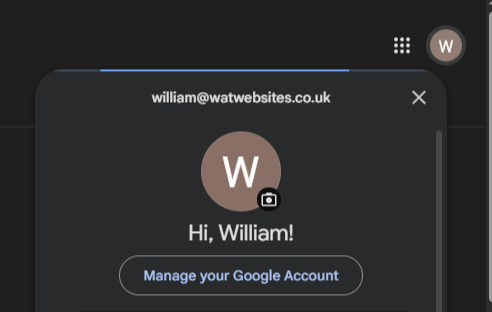
1. Check you're signed in to the right Google account. On google.com, click or tap your profile picture in the top right. It should show the account that owns or manages your business. If it doesn't, switch accounts from the same menu. Being on the wrong account is the most common reason people can't find their profile.
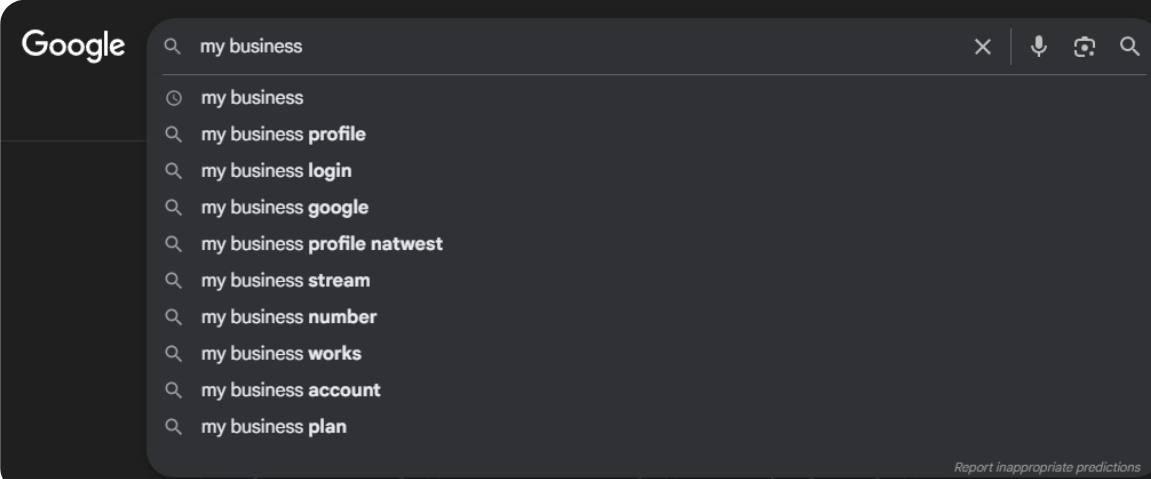
2. Search "my business" on Google. If your account manages one business, that's all you need to type. If it manages more than one, search your business name exactly as it shows on Google instead.
3. Look for "Your business on Google". It sits at the top of the results, with buttons for Edit profile, Read reviews, Photos and the rest. That's your dashboard, so bookmark it. If it isn't at the top, scroll down to "You manage this Business Profile" and open it from there.
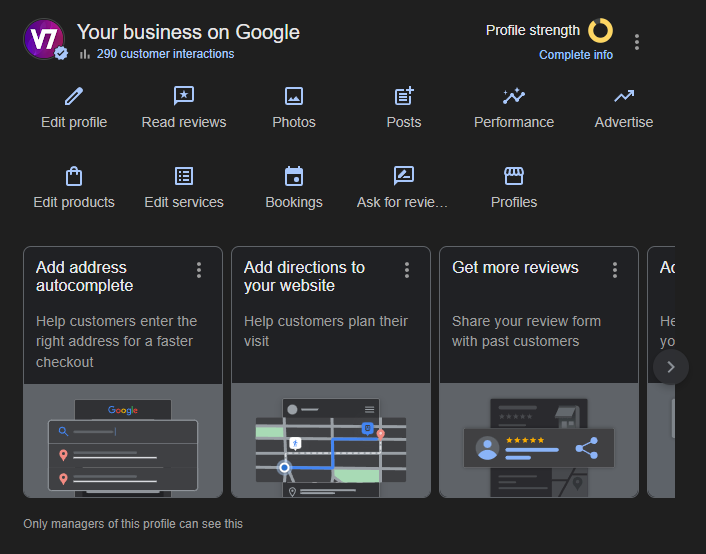
Still can't see it? Our guide on how to access your Google Business Profile covers the Google Maps app, and what to do if someone else manages your profile.
Where your review link is, on a phone
Step 1: Tap Read reviews. On your phone, your dashboard looks like this. Tap Read reviews.

Step 2: Tap Get more reviews. It's next to the blue Reply to reviews button.

Step 3: Copy the link. Tap the copy icon next to your review link, or share it straight to WhatsApp or email from the buttons above it.

Getting the QR code (computer only)
Google only makes the review QR code in a computer browser, not on a phone. That's from Google's own help page, checked on 2 November 2026.
Step 1: On a computer, get to your dashboard the same way (right account, search "my business") and click Read reviews. Then click Get more reviews.
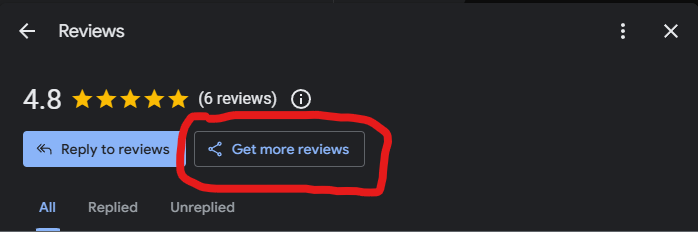
Step 2: Copy the link with the icon next to it. For the QR code, right-click it and choose Save image as.
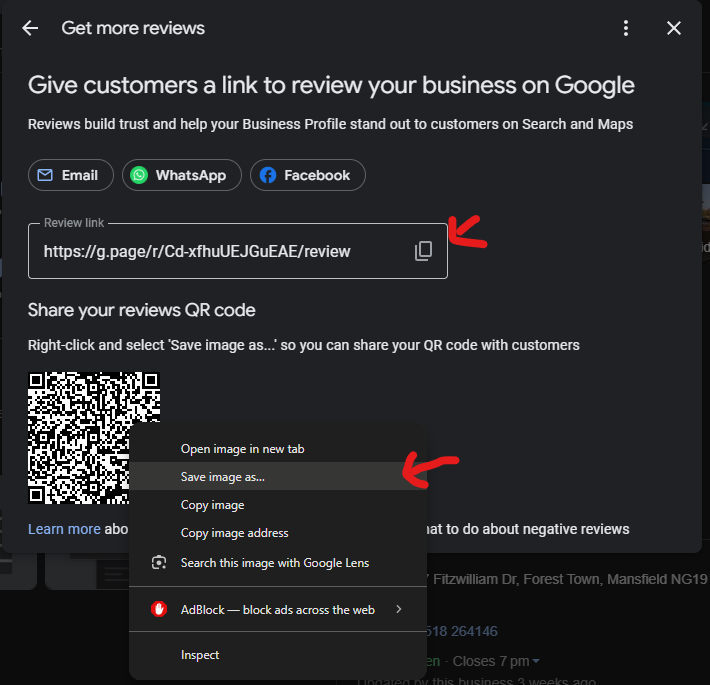
Save it somewhere you'll find it again. It goes on invoices, quotes, business cards and the van. Before you print a batch, scan the printed copy with your own phone to make sure it opens your review box.
What the link looks like, and what it opens
Your link starts https://g.page/r/, then a code, then /review. Ours is g.page/r/Cd-xfhuUEJGuEAE/review.
We checked where ours goes on 2 November 2026. On a phone, it forwards to a Google page at search.google.com/local/writereview, with our Place ID on the end. That page opens straight onto the review box. Your customer doesn't have to search for you or click around.
It's the same link for every customer, so you only need to find it once. Google does say a Place ID can change now and then, so tap your own link once a year to check it still opens the review box.
What to send with it
Send it the same day, by text or WhatsApp, while they're still pleased with the job. Something like:
Thanks for having us, really glad you're happy with it. If you get a minute, a quick Google review would help us a lot. Here's the link: [your link]. Just a few words about the job is plenty.
Can't get into your profile? Build the link yourself
Most guides skip this bit. If you don't manage the profile, or whoever set it up has the login, you can still make a working review link.
- Open Google's free Place ID Finder and type your business name.
- Copy the Place ID it shows. It's a long code that starts with
ChIJ. - Put it on the end of this:
https://search.google.com/local/writereview?placeid=
That's the same page our own g.page link forwarded to when we tested it. Then sort out access to the profile anyway, because you'll want to reply to your reviews.
How we know
Everything here was checked on 2 November 2026: the steps against Google's own help pages, Create a Google link or QR code to request reviews and Tips to get more reviews, and the link test on our own profile. The screenshots are all from our own Business Profile.
Frequently asked questions
Why can't I find my Business Profile when I search "my business"?
Nine times out of ten you're signed in to the wrong Google account. Click your profile picture in the top right of Google, check which account is active, and switch to the one that manages your business. If you manage more than one business, search the business name instead.
Can I get my Google review QR code on my phone?
No. Google only makes the review QR code in a computer browser. On a phone you can copy and share the link, which is what most customers need anyway. Make the QR code once on a computer and save it.
Does my customer need a Google account to leave a review?
Yes. Google says customers must be signed in to a Google account to leave a review. They can make one with any email address, not just Gmail. If a customer says the link "didn't work", this is usually why.
Can I offer a discount or a freebie for a review?
No. Google calls any incentive "fake engagement" and bans it, even if you don't ask for five stars. Reviews can be removed and your profile restricted. Ask, and make it easy with the link.
Can I ask friends and family?
Best not. Google's content policy bans reviews based on a conflict of interest, and it lists family relationships as one. Reviews like that can be taken down.
A customer left a review and it hasn't shown up. Why?
Google checks reviews before they appear, and some take a while or get filtered out. Google explains why in About missing or delayed reviews.
Should I reply to reviews?
Yes, briefly. Our review system guide covers replying, including to bad ones.
Rather not do this yourself? It's part of the review cards we set up for clients: a branded link, printed QR cards, and your latest Google reviews shown on your website automatically.